Switching from an Authenticator App to SMS for Two-Factor Authentication (2FA)
If you currently access the portals using a verification code generated by an authenticator app and need to switch to receiving codes via SMS, this guide explains the process and what to expect.
Two-Factor Authentication (2FA) provides an additional layer of security for your account. Authenticator apps are generally more secure and reliable, but SMS verification can be easier to manage for some users - particularly if access to the app or original device has changed. Please note that SMS codes may occasionally be delayed or affected by network issues, making them slightly less reliable than app-based authentication.
How to switch to SMS verification
If you need to change your 2FA method from an authenticator app to SMS, follow the steps below:
Contact Support
Reach out to the Support team and request a reset of your 2FA profile. Support will handle this for you.Wait for confirmation
Once Support confirms that your 2FA profile has been reset, you can proceed to log in. There is no need to change your password or attempt any other actions before this confirmation.Log in and set up SMS verification
Log in to the portal using the same email address you verified when you first registered. You will then be guided through the steps to register and confirm SMS verification for your account.
After completing these steps, you will receive your 2FA verification codes via SMS when accessing the portals.
If you are unsure which 2FA method is best for your needs or experience any issues during the process, please contact Support for assistance.
Getting a code via SMS ⬇️
Below are guided steps to receive a code via SMS after you've logged in.
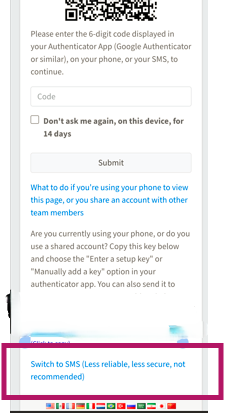
1) In this example, we’ve selected “Switch to SMS” (please note: this option is less secure and not recommended). This selection is found at the bottom of the 2FA set up page, as shown in the screenshot.
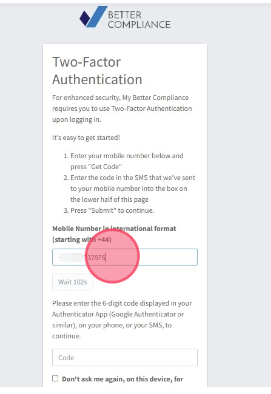
2)After selecting “Switch to SMS,” you’ll be directed to a screen where you can enter your mobile number.
Enter your number to receive a verification code via SMS. The code is valid for 2 minutes, after which you’ll need to request a new one.
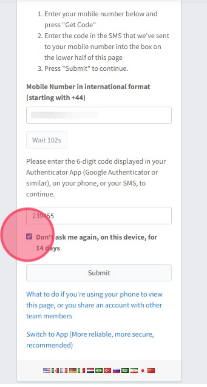
3) Then enter the code received via SMS on your phone and click the "Don't ask me again, on this device, for 14 days" field.
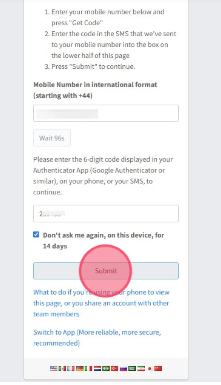
4) Click "Submit"
Was this article helpful?
That’s Great!
Thank you for your feedback
Sorry! We couldn't be helpful
Thank you for your feedback
Feedback sent
We appreciate your effort and will try to fix the article